Configurar un package en un lab de Intune
Creando una Aplicación Azure para Intune
Este PowerShell Script crea una aplicación Azure con los permisos de API necesarios para interactuar con Microsoft Graph.
También crea un principal de servicio y otorga consentimiento de administrador.
La aplicación se utilizará para gestionar (crear/eliminar/obtener) packages de Intune a través de PowerShell (módulo IntuneWin32App).
### Suprimir errores de reinstalación de módulos y advertencias generales ###

$ErrorActionPreference = "SilentlyContinue"

### Solo instalar Graph SDK si no está presente ###

if (-not (Get-Module -ListAvailable -Name Microsoft.Graph)) {
    Install-Module Microsoft.Graph -Scope CurrentUser -Force -AllowClobber
}

### Conectar a Microsoft Graph como Administrador Global ###

Connect-MgGraph -Scopes "Application.ReadWrite.All", "DelegatedPermissionGrant.ReadWrite.All", "Directory.ReadWrite.All"

### Restablecer manejo de errores para lógica actual ###

$ErrorActionPreference = "Stop"

### Crear la aplicación con ambos URIs de redirección para Móvil/Escritorio ###

$app = New-MgApplication -DisplayName "Azure - IntuneWin32App" -PublicClient @{
    RedirectUris = @(
        "https://login.microsoftonline.com/common/oauth2/nativeclient",
        "urn:ietf:wg:oauth:2.0:oob"
    )
}

### Crear un Principal de Servicio para la aplicación ###

$sp = New-MgServicePrincipal -AppId $app.AppId

### Obtener Principal de Servicio de Microsoft Graph (API objetivo) ###

$graphSp = Get-MgServicePrincipal -Filter "DisplayName eq 'Microsoft Graph'"

### Definir permisos delegados requeridos ###

$delegatedPermissions = @(
    "DeviceManagementApps.ReadWrite.All",
    "DeviceManagementConfiguration.ReadWrite.All",
    "DeviceManagementManagedDevices.PrivilegedOperations.All",
    "DeviceManagementManagedDevices.ReadWrite.All",
    "DeviceManagementRBAC.ReadWrite.All",
    "DeviceManagementServiceConfig.ReadWrite.All",
    "Directory.Read.All",
    "Group.Read.All",
    "Group.ReadWrite.All",
    "openid",
    "User.Read"
)

### Resolver IDs de ámbito de permisos ###

$requiredDelegatedPermissions = @()
foreach ($perm in $delegatedPermissions) {
    $match = $graphSp.Oauth2PermissionScopes | Where-Object { $_.Value -eq $perm }
    if ($match) {
        $requiredDelegatedPermissions += @{
            Id = $match.Id
            Type = "Scope"
        }
    } else {
        Write-Warning "Permiso '$perm' no encontrado en los ámbitos de Microsoft Graph."
    }
}

### Agregar permisos al registro de aplicación ###

Update-MgApplication -ApplicationId $app.Id -RequiredResourceAccess @(
    @{
        ResourceAppId = $graphSp.AppId
        ResourceAccess = $requiredDelegatedPermissions
    }
)

### Otorgar consentimiento de administrador usando API REST de Graph sin procesar ###

$body = @{
    clientId    = $sp.Id
    consentType = "AllPrincipals"
    principalId = $null
    resourceId  = $graphSp.Id
    scope       = ($delegatedPermissions -join " ")
} | ConvertTo-Json -Depth 3

Invoke-MgGraphRequest -Method POST -Uri "https://graph.microsoft.com/v1.0/oauth2PermissionGrants" -Body $body -ContentType "application/json"

Write-Host "`nAplicación 'Azure - IntuneWin32App' creada, ambos URIs de redirección configurados, y consentimiento de administrador otorgado exitosamente." -ForegroundColor Green
Creando un package Win32App
En lugar de usar la interfaz gráfica del portal de Intune para crear y desplegar un package de aplicación, este PowerShell Script automatiza todo el proceso.
El PowerShell Script Auto-DeployIntuneWin32App.ps1, ubicado en la carpeta raíz LabIntune-ChromePackage, está diseñado para automatizar el despliegue de aplicaciones Win32 en Microsoft Intune.
La carpeta raíz contiene todos los archivos necesarios para ejecutar el script, incluyendo el archivo config.json para la configuración (nombre de la aplicación, versión de la aplicación, etc.), el ejecutable IntuneWinAppUtil.exe para crear packages .intunewin, y las subcarpetas Package e Intunewin.
La carpeta Package contiene los archivos fuente de la aplicación, como archivos de instalación o scripts, mientras que la carpeta Intunewin se utiliza para almacenar los packages .intunewin generados.
Esta configuración estructurada de "directorio" permite la gestión centralizada y simplifica el proceso de despliegue.
New-Item -Path "C:\LabIntune-ChromePackage\Apps\Intunewin" -ItemType Directory -Force
New-Item -Path "C:\LabIntune-ChromePackage\Apps\Package" -ItemType Directory -Force
Estructura de Carpetas
{
    "clientId":  "c5552704-11fd-4b02-9910-c2bba101e899",
    "tenantId":  "93bf5cc4-6277-44d9-bb70-57af85b6277e",
    "appName":  "[FRLAB] - Google Chrome 136.0.7103.49",
    "appDescription":  "Google Chrome",
    "publisher":  "Google",
    "appVersion":  "136.0.7103.49",
    "intunewinFileName":  "Install_ChromeBrowser",
    "installCommandLine":  "powershell.exe -ExecutionPolicy Bypass -File .\\Install_ChromeBrowser.ps1",
    "uninstallCommandLine":  "powershell.exe -ExecutionPolicy Bypass -File .\\Uninstall_ChromeBrowser.ps1",
    "iconPath":  "Apps\\Package\\chrome.png",
    "detection":  {
                      "type":  "MSI",
                      "productcode":  "{C0A67654-8811-318B-A81F-473E4F5DA8EB}",
                      "checkProductVersion":  false
                  },
    "intunewinFilePath":  "C:\\LabIntune\\LabIntune-ChromePackage\\Apps\\Intunewin\\Install_ChromeBrowser.intunewin"
}### © Aaron (Iso) Pescasio / www.apescasio.fr ###
### Función para manejar errores ###
function Write-Log {
param (
[Parameter(Mandatory = $true)]
[string]$Message,
[Parameter(Mandatory = $false)]
[ValidateSet("Info", "Warning", "Error", "Success")]
[string]$Level = "Info"
)
$timestamp = Get-Date -Format "yyyy-MM-dd HH:mm:ss"
$logMessage = "[$timestamp] [$Level] $Message"
switch ($Level) {
"Info" { Write-Host $logMessage -ForegroundColor Cyan }
"Warning" { Write-Host $logMessage -ForegroundColor Yellow }
"Error" { Write-Host $logMessage -ForegroundColor Red }
"Success" { Write-Host $logMessage -ForegroundColor Green }
}
}
### Función para verificar e instalar módulos requeridos ###
function Ensure-ModuleInstalled {
param (
[Parameter(Mandatory = $true)]
[string]$ModuleName
)
if (-not (Get-Module -ListAvailable -Name $ModuleName)) {
Write-Log "Instalando módulo $ModuleName..." "Info"
try {
Install-Module -Name $ModuleName -Force -Scope CurrentUser
Write-Log "Módulo $ModuleName instalado exitosamente" "Success"
}
catch {
Write-Log "Falló la instalación del módulo $ModuleName : $_" "Error"
throw "Imposible instalar módulo : $ModuleName"
}
}
else {
Write-Log "Módulo $ModuleName ya instalado" "Info"
}
Import-Module $ModuleName
}
### Función para crear el package .intunewin ###
function Create-IntuneWinPackage {
param (
[Parameter(Mandatory = $true)]
[string]$SourcePath,
[Parameter(Mandatory = $true)]
[string]$SetupFile,
[Parameter(Mandatory = $true)]
[string]$OutputPath,
[Parameter(Mandatory = $true)]
[string]$IntuneWinAppUtilPath
)
if (-not (Test-Path $SourcePath)) {
throw "La ruta de origen no existe : $SourcePath"
}
if (-not (Test-Path $IntuneWinAppUtilPath)) {
throw "IntuneWinAppUtil.exe no existe : $IntuneWinAppUtilPath"
}
$sourceFilePath = Join-Path $SourcePath $SetupFile
if (-not (Test-Path $sourceFilePath)) {
throw "El archivo instalador no existe : $sourceFilePath"
}
if (-not (Test-Path $OutputPath)) {
New-Item -Path $OutputPath -ItemType Directory -Force | Out-Null
Write-Log "Carpeta de salida ha sido creada : $OutputPath" "Info"
}
Write-Log "Creando el package .intunewin ahora mismo..." "Info"
$processArgs = "-c ""$SourcePath"" -s ""$sourceFilePath"" -o ""$OutputPath"""
try {
$process = Start-Process $IntuneWinAppUtilPath -ArgumentList $processArgs -Wait -PassThru -NoNewWindow
if ($process.ExitCode -ne 0) {
throw "La creación del package falló con este código de error $($process.ExitCode)"
}
$intunewinFileName = [System.IO.Path]::GetFileNameWithoutExtension($SetupFile) + ".intunewin"
$intunewinFilePath = Join-Path $OutputPath $intunewinFileName
if (-not (Test-Path $intunewinFilePath)) {
throw "El archivo .intunewin no se ha creado exitosamente : $intunewinFilePath"
}
Write-Log "package .intunewin creado exitosamente : $intunewinFilePath" "Success"
return $intunewinFilePath
}
catch {
Write-Log "Error durante la creación del package : $_" "Error"
throw "Error durante la creación del package .intunewin"
}
}
### Función para conectar a Microsoft Graph ###
function Connect-ToMSGraph {
param (
[Parameter(Mandatory = $true)]
[string]$ClientId,
[Parameter(Mandatory = $true)]
[string]$TenantId,
[Parameter(Mandatory = $false)]
[switch]$UseDeviceAuthentication = $true
)
try {
Write-Log "Conectando a Microsoft Graph..." "Info"
Connect-MSIntuneGraph -TenantId $TenantId -ClientId $ClientId
Write-Log "Conectado exitosamente a Microsoft Graph" "Success"
}
catch {
Write-Log "No se puede conectar a Microsoft Graph : $_" "Error"
throw "No se puede conectar a Microsoft Graph"
}
}
### Función para desplegar la aplicación en Intune ###
function Deploy-IntuneApp {
param (
[Parameter(Mandatory = $true)]
[string]$IntuneWinFilePath,
[Parameter(Mandatory = $true)]
[string]$AppName,
[Parameter(Mandatory = $true)]
[string]$AppDescription,
[Parameter(Mandatory = $true)]
[string]$Publisher,
[Parameter(Mandatory = $false)]
[string]$AppVersion = [string]::Empty,
[Parameter(Mandatory = $true)]
[string]$InstallCommandLine,
[Parameter(Mandatory = $true)]
[string]$UninstallCommandLine,
[Parameter(Mandatory = $true)]
[PSCustomObject]$DetectionSettings,
[Parameter(Mandatory = $false)]
[string]$Icon = [string]::Empty,
[Parameter(Mandatory = $false)]
[string]$Architecture = "x64",
[Parameter(Mandatory = $false)]
[string]$MinWindowsRelease = "W11_21H2"
)
if (-not (Test-Path $IntuneWinFilePath)) {
throw "El archivo .intunewin no existe : $IntuneWinFilePath"
}
try {
Write-Log "Configurando la Regla de Detección para $AppName" "Info"
if ($DetectionSettings.type -eq "MSI") {
$detectionRule = New-IntuneWin32AppDetectionRuleMSI `
-ProductCode $DetectionSettings.productcode `
-ProductVersionOperator "notConfigured"
}
elseif ($DetectionSettings.type -eq "File") {
$detectionRule = New-IntuneWin32AppDetectionRuleFile `
-Path $DetectionSettings.path `
-FileOrFolder $DetectionSettings.fileorfolder `
-Version $DetectionSettings.version `
-Operator $DetectionSettings.operator `
-Check32BitOn64System $DetectionSettings.check32biton64system
}
elseif ($DetectionSettings.type -eq "Registry") {
$detectionRule = New-IntuneWin32AppDetectionRuleRegistry `
-KeyPath $DetectionSettings.keypath `
-ValueName $DetectionSettings.valuename `
-Check32BitOn64System $DetectionSettings.check32biton64system `
-DetectionType $DetectionSettings.detectiontype `
-StringComparisonOperator $DetectionSettings.stringcomparisonoperator `
-StringComparisonValue $DetectionSettings.stringcomparisonvalue `
-VersionComparisonOperator $DetectionSettings.versioncomparisonoperator `
-VersionComparisonValue $DetectionSettings.versioncomparisonvalue `
-IntegerComparisonOperator $DetectionSettings.integercomparisonoperator `
-IntegerComparisonValue $DetectionSettings.integercomparisonvalue
}
else {
throw "Tipo de detección no soportado, solo MSI / File / Registry funciona aquí y seleccionaste : $($DetectionSettings.type)"
}
Write-Log "Configurando la regla de requisitos para $AppName" "Info"
$requirementRule = New-IntuneWin32AppRequirementRule -Architecture $Architecture -MinimumSupportedWindowsRelease $MinWindowsRelease
$returnCodes = @(
New-IntuneWin32AppReturnCode -ReturnCode 0 -Type "success"
New-IntuneWin32AppReturnCode -ReturnCode 1707 -Type "success"
New-IntuneWin32AppReturnCode -ReturnCode 3010 -Type "softReboot"
New-IntuneWin32AppReturnCode -ReturnCode 1641 -Type "hardReboot"
New-IntuneWin32AppReturnCode -ReturnCode 1618 -Type "retry"
)
Write-Log "Desplegando el package actual $AppName dentro del portal de Intune..." "Info"
$existingApp = Get-IntuneWin32App -DisplayName $AppName -ErrorAction SilentlyContinue
if ($existingApp) {
Write-Log "Una aplicación con el nombre '$AppName' ya existe. Actualizándola ahora mismo..." "Warning"
$app = Update-IntuneWin32App -ID $existingApp.id `
-FilePath $IntuneWinFilePath `
-DisplayName $AppName `
-Description $AppDescription `
-Publisher $Publisher `
-AppVersion $AppVersion `
-InstallExperience "system" `
-RestartBehavior "suppress" `
-DetectionRule $detectionRule `
-RequirementRule $requirementRule `
-ReturnCode $returnCodes `
-InstallCommandLine $InstallCommandLine `
-UninstallCommandLine $UninstallCommandLine `
-Icon $Icon
Write-Log "Aplicación $AppName actualizada exitosamente (ID: $($app.id))" "Success"
}
else {
$app = Add-IntuneWin32App -FilePath $IntuneWinFilePath `
-DisplayName $AppName `
-Description $AppDescription `
-Publisher $Publisher `
-AppVersion $AppVersion `
-InstallExperience "system" `
-RestartBehavior "suppress" `
-DetectionRule $detectionRule `
-RequirementRule $requirementRule `
-ReturnCode $returnCodes `
-InstallCommandLine $InstallCommandLine `
-UninstallCommandLine $UninstallCommandLine `
-Icon $Icon
Write-Log "Aplicación $AppName desplegada exitosamente dentro del portal de Intune (ID: $($app.id))" "Success"
}
return $app
}
catch {
Write-Log "Falló el despliegue de la aplicación dentro del portal de Intune $AppName : $_" "Error"
throw "Falló el despliegue de la aplicación dentro del portal de Intune"
}
}
### Función principal ###
function Main {
$scriptRoot = if ($PSScriptRoot) {
$PSScriptRoot
} elseif ($MyInvocation.MyCommand.Path) {
Split-Path -Parent $MyInvocation.MyCommand.Path
} else {
Get-Location
}
Write-Log "Usando la carpeta raíz : $scriptRoot" "Info"
$configPath = Join-Path $scriptRoot "config.json"
$pathPackage = Join-Path $scriptRoot "Apps\Package"
$pathIntunewin = Join-Path $scriptRoot "Apps\Intunewin"
$intuneWinAppUtilPath = Join-Path $scriptRoot "IntuneWinAppUtil.exe"
if (-not (Test-Path $configPath)) {
Write-Log "El config.json no existe : $configPath" "Error"
exit 1
}
if (-not (Test-Path $intuneWinAppUtilPath)) {
Write-Log "IntuneWinAppUtil.exe no existe : $intuneWinAppUtilPath" "Error"
exit 1
}
try {
$config = Get-Content $configPath -Raw | ConvertFrom-Json
Write-Log "Configuración importada exitosamente" "Success"
}
catch {
Write-Log "La configuración no se ha importado exitosamente : $_" "Error"
exit 1
}
Ensure-ModuleInstalled -ModuleName "Microsoft.Graph.Intune"
Ensure-ModuleInstalled -ModuleName "IntuneWin32App"
try {
$setupFile = "$($config.intunewinFileName).ps1"
$intunewinFilePath = Create-IntuneWinPackage -SourcePath $pathPackage -SetupFile $setupFile `
-OutputPath $pathIntunewin -IntuneWinAppUtilPath $intuneWinAppUtilPath
$configUpdated = $config | Select-Object *
Add-Member -InputObject $configUpdated -MemberType NoteProperty -Name "intunewinFilePath" -Value $intunewinFilePath -Force
$configUpdated | ConvertTo-Json | Set-Content $configPath
$iconBase64 = [string]::Empty
if ($config.iconPath -and (Test-Path (Join-Path $scriptRoot $config.iconPath))) {
Write-Log "Importando la imagen del icono desde : $($config.iconPath)" "Info"
$iconPath = Join-Path $scriptRoot $config.iconPath
$iconBytes = [System.IO.File]::ReadAllBytes($iconPath)
$iconBase64 = [System.Convert]::ToBase64String($iconBytes)
Write-Log "Imagen del icono convertida a Base64 exitosamente" "Success"
}
else {
Write-Log "Imagen del icono no encontrada o no especificada correctamente en la configuración" "Warning"
}
Connect-ToMSGraph -ClientId $config.clientId -TenantId $config.tenantId -UseDeviceAuthentication
$app = Deploy-IntuneApp -IntuneWinFilePath $intunewinFilePath `
-AppName $config.appName `
-AppDescription $config.appDescription `
-Publisher $config.publisher `
-AppVersion $config.appVersion `
-InstallCommandLine $config.installCommandLine `
-UninstallCommandLine $config.uninstallCommandLine `
-DetectionSettings $config.detection `
-Icon $iconBase64
Write-Log "El despliegue de $($config.appName) es un éxito" "Success"
}
catch {
Write-Log "Un error ocurrió durante el proceso : $_" "Error"
exit 1
}
}
### Ejecutar el script principal ###
Main### © Aaron (Iso) Pescasio / www.apescasio.fr ###
### Manejar PowerShell de 32 bits en sistemas de 64 bits ###
If ($ENV:PROCESSOR_ARCHITEW6432 -eq "AMD64") {
Try {
&"$ENV:WINDIR\SysNative\WindowsPowershell\v1.0\PowerShell.exe" -File $PSCOMMANDPATH
}
Catch {
Throw "Falló al iniciar $PSCOMMANDPATH"
}
Exit
}
### Probar y crear el directorio para logs de instalación ###
if (!(Test-Path "$($env:ProgramData)\Lab")) {
New-Item -Path "$($env:ProgramData)\Lab" -ItemType "Directory" | Out-Null
}
if (!(Test-Path "$($env:ProgramData)\Lab\Intune")) {
New-Item -Path "$($env:ProgramData)\Lab\Intune" -ItemType "Directory" | Out-Null
}
$date = Get-Date -UFormat "%Y%m%d-%H%M%S"
$errorCode = 0
### Iniciar logging ###
Start-Transcript -Path "$($env:ProgramData)\Lab\Intune\$date-Install_Chrome.log" -Force
try {
Write-Host "$((Get-Date).ToString('yyyy-MM-dd HH:mm:ss')) - Iniciando instalación de Google Chrome"
# Ejecutar el instalador MSI sin interfaz gráfica
$result = Start-Process 'msiexec.exe' -ArgumentList "/I GoogleChromeStandaloneEnterprise64.msi /qn /norestart" -Wait -PassThru
if ($result.ExitCode -ne 0) {
throw "La instalación falló con código de salida $($result.ExitCode)"
}
Write-Host "$((Get-Date).ToString('yyyy-MM-dd HH:mm:ss')) - Instalación de Google Chrome completada exitosamente"
}
catch {
Write-Host "$((Get-Date).ToString('yyyy-MM-dd HH:mm:ss')) - Instalación con error: $($_.Exception.Message)"
$errorCode = 1
}
finally {
Stop-Transcript
}
Exit $errorCode### © Aaron (Iso) Pescasio / www.apescasio.fr ###
### Buscar Google Chrome ###
$SEARCH = 'Google Chrome'
### Recuperar información de instalación ###
$INSTALLED = Get-ItemProperty HKLM:\Software\Microsoft\Windows\CurrentVersion\Uninstall\* | Select-Object DisplayName, UninstallString
$INSTALLED += Get-ItemProperty HKLM:\Software\Wow6432Node\Microsoft\Windows\CurrentVersion\Uninstall\* | Select-Object DisplayName, UninstallString
### Buscar el programa ###
$RESULT = $INSTALLED | Where-Object { $_.DisplayName -ne $null -and $_.DisplayName -match $SEARCH }
### Crear la carpeta de log si es necesario ###
if (!(Test-Path "$($env:ProgramData)\Lab")) {
New-Item -Path "$($env:ProgramData)\Lab" -ItemType "Directory" -Force | Out-Null
}
if (!(Test-Path "$($env:ProgramData)\Lab\Intune")) {
New-Item -Path "$($env:ProgramData)\Lab\Intune" -ItemType "Directory" -Force | Out-Null
}
$date = Get-Date -UFormat "%Y%m%d-%H%M%S"
$errorCode = 0
Start-Transcript -Path "$($env:ProgramData)\Lab\Intune\$date-Uninstall_Chrome.log" -Force
### Verificar si el programa se encuentra ###
if ($RESULT) {
Write-Host "Programa encontrado. Iniciando la desinstalación..."
# Desinstalar Google Chrome
if ($RESULT.UninstallString -like "msiexec*") {
try {
$ARGS = (($RESULT.UninstallString -split ' ')[1] -replace '/I', '/X ') + ' /q'
Start-Process msiexec.exe -ArgumentList $ARGS -Wait
Write-Host "Chrome ha sido desinstalado exitosamente."
}
catch {
Write-Error "Error durante la desinstalación de MSI: $_"
$errorCode = 1
}
} else {
try {
$UNINSTALL_COMMAND = (($RESULT.UninstallString -split '\"')[1])
$UNINSTALL_ARGS = (($RESULT.UninstallString -split '\"')[2]) + ' /S'
Start-Process $UNINSTALL_COMMAND -ArgumentList $UNINSTALL_ARGS -Wait
Write-Host "Chrome ha sido desinstalado exitosamente."
}
catch {
Write-Error "Error durante la desinstalación de MSI: $_"
$errorCode = 1
}
}
} else {
Write-Warning "Programa '$SEARCH' no encontrado en el dispositivo."
}
Stop-Transcript
Exit $errorCodeEjecutando el Script Auto-DeployIntuneWin32App.ps1
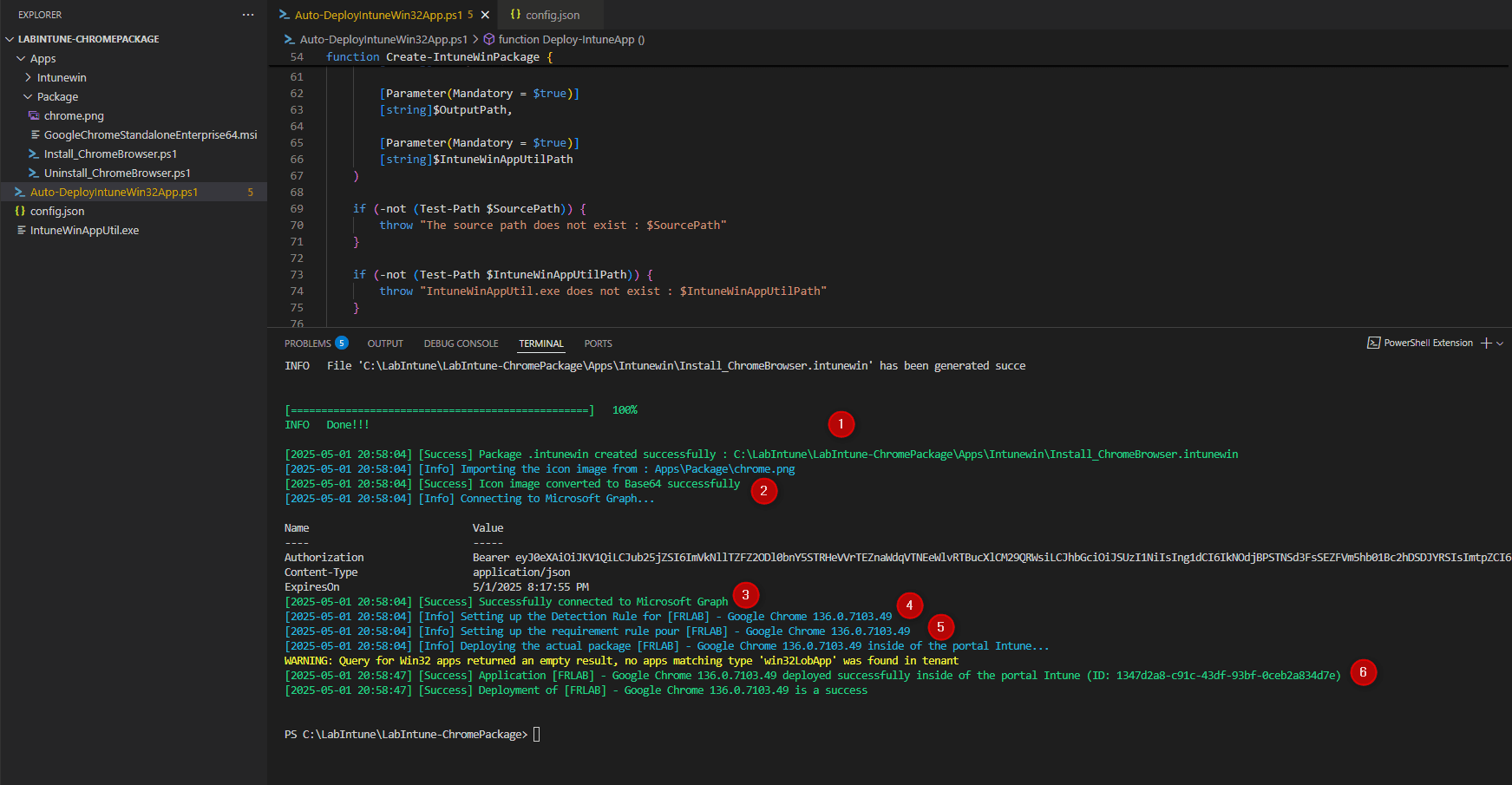
Después de ejecutar el script, me conecté al prompt de Microsoft, y todo funcionó sin problemas.
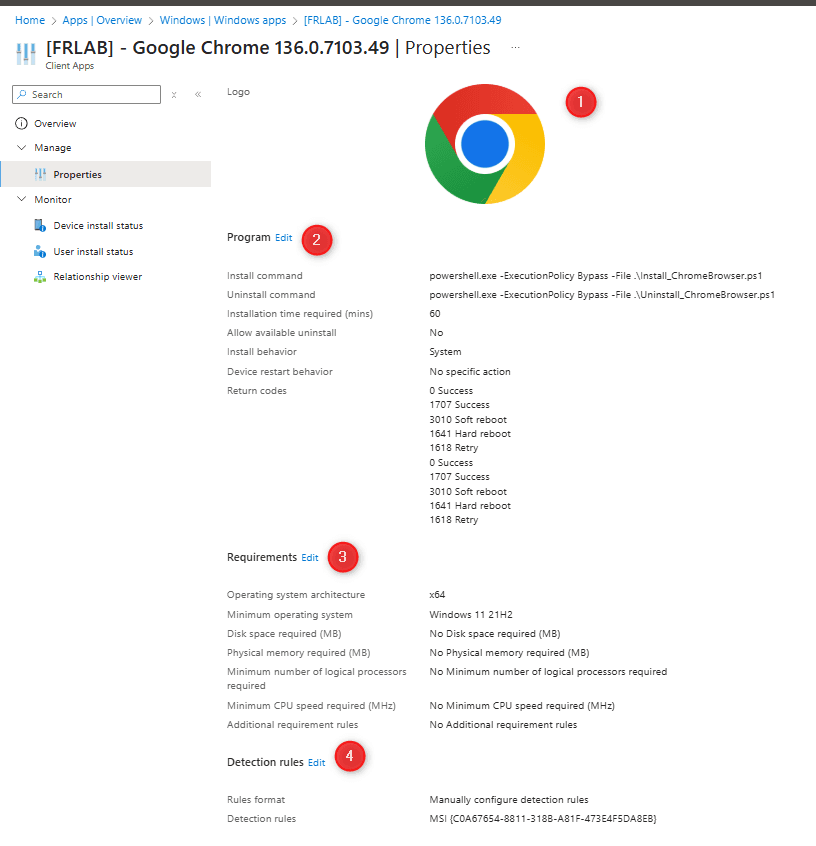
Puedo ver el package disponible en el lab de Intune.
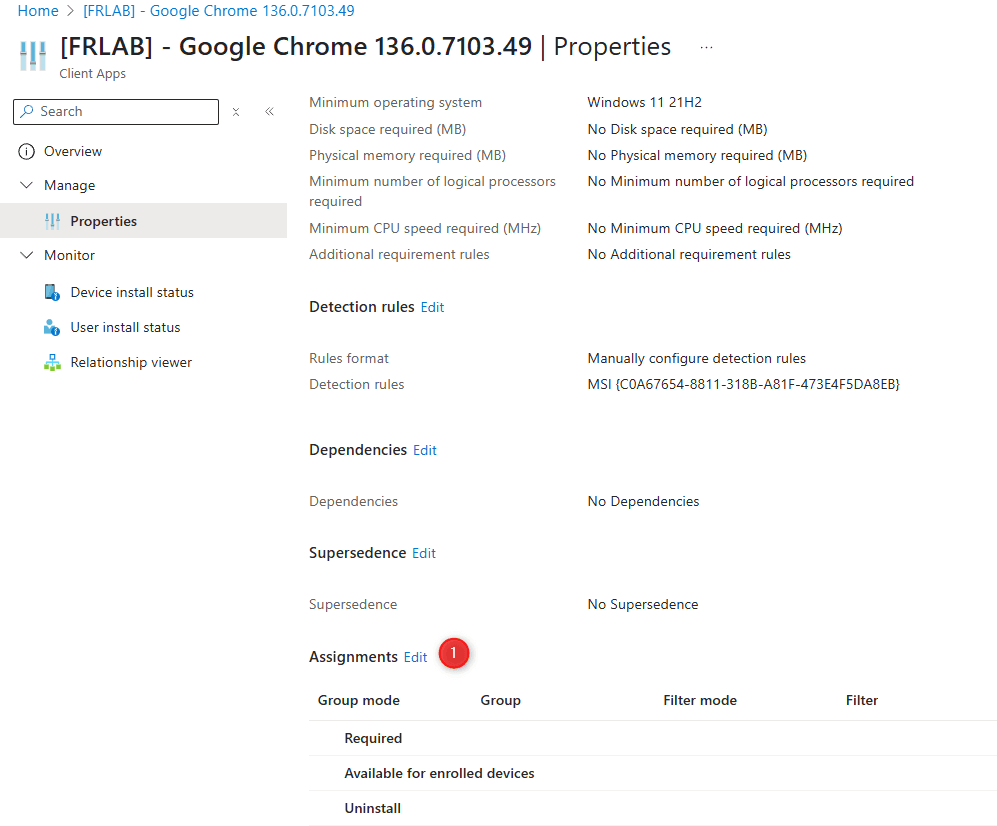
Configuré las "asignaciones" del package haciendo clic en "Editar".
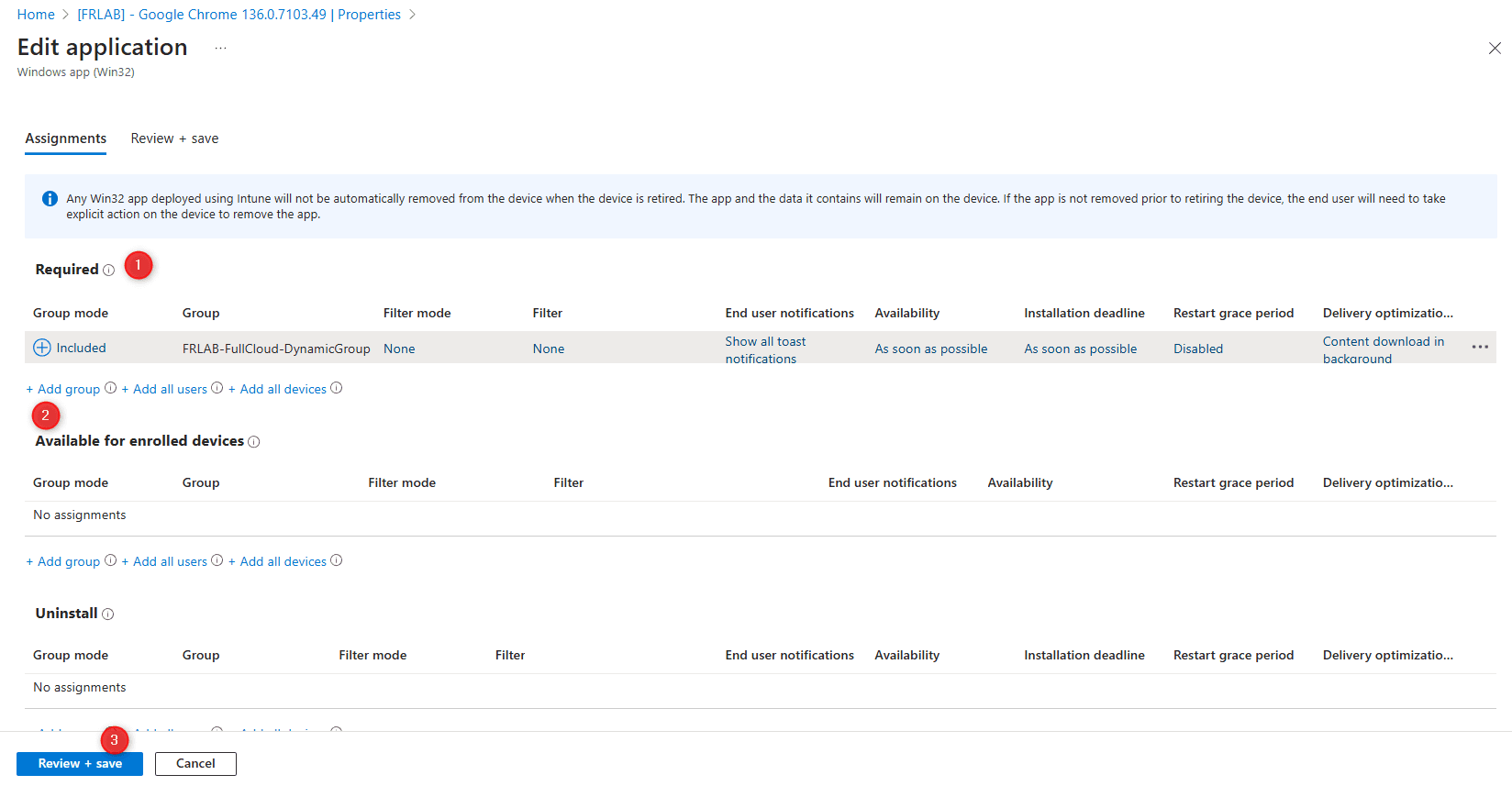
Luego, agregué el grupo FRLAB-FullCloud-DynamicGroup y guardé.
Última actualización: